


Simple Planner
Vintage Stardew Valley Digital Planner Notebook
Vintage Stardew Valley Digital Planner Notebook
Couldn't load pickup availability
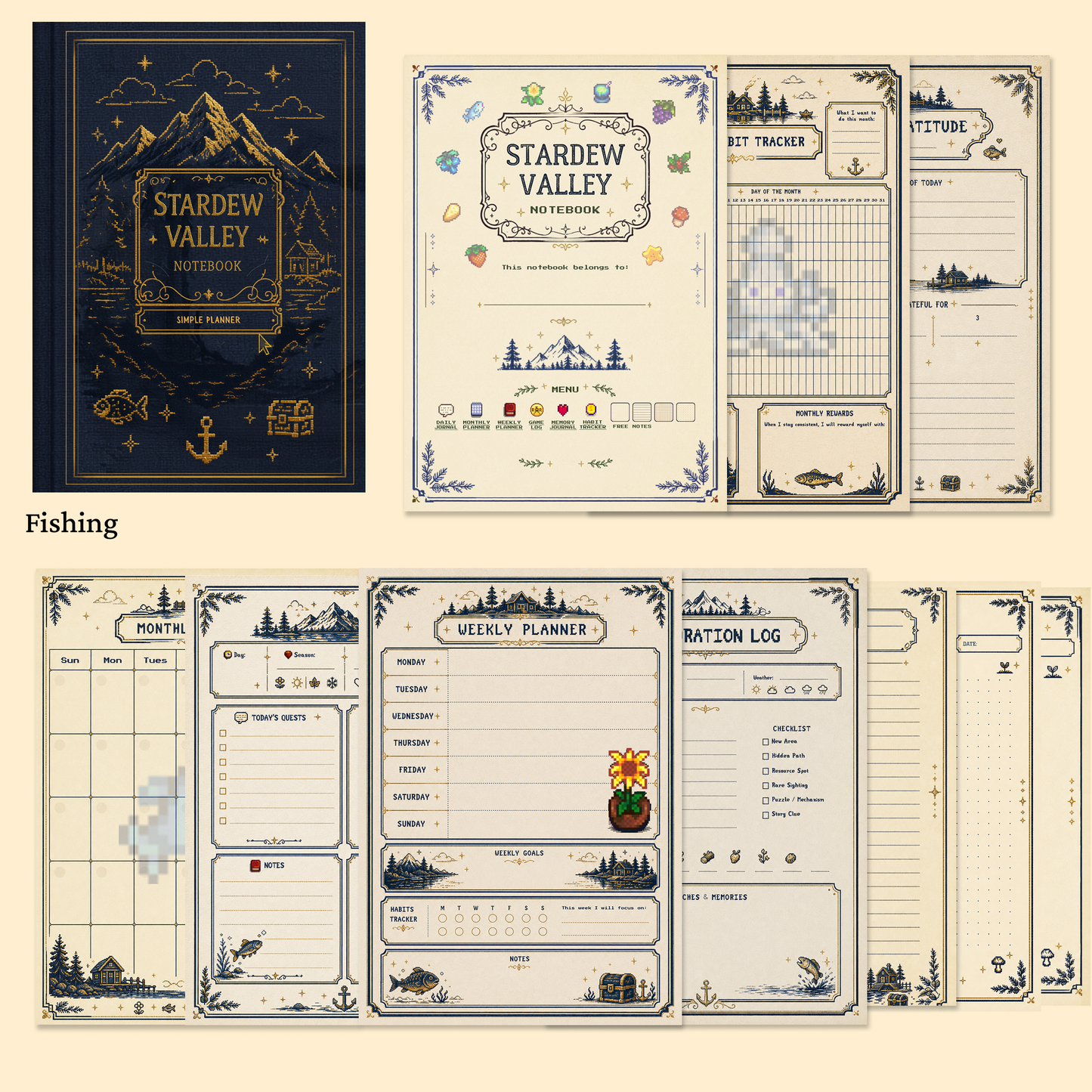
This cottagecore digital notebook, inspired by the vintage charm of Stardew Valley, is made for gamers, students, and dreamers who want their planning to feel like a storybook. Illustrated pages meet genuinely useful layouts, so it works as both a journal you enjoy opening and a planner that keeps you on track.
The notebook contains 80 unique pages covering a full toolkit: a monthly planner, weekly planner, exploration log, daily journal, mood tracker, habit tracker, and freeform notes sections. A hyperlinked navigation menu lets you jump straight to any section with a tap, and because the notebook is digital, every page can be reused and duplicated without limit.
It works in GoodNotes, Notability, Xodo, and other PDF annotation apps on iPad and tablets. Your download arrives as a ZIP archive containing PDF and PNG files — import the PDF into your favorite note app and start writing with your stylus.
Delivery is instant: a download link appears on your order confirmation page and in your email right after purchase, and you keep lifetime access to the files.
Please note that as an instant digital download, this notebook is non-refundable once the files have been accessed. This is a fan-made design and is not affiliated with or endorsed by any game publisher.
Share


so cute, tried using in onenote and it struggles a bit but still cute
Exactly what I expected and wanted! I love it.
Only thing is I didn’t expect having to download Good Notes though, maybe it was in there that I didn’t read. But I didn’t mind paying for the cheap subscription so that I could use this planner.
I love that it is digital, easy to edit. Love it! Super cute, and I recommend :P
Frequently asked questions
How do I get my files after purchase?
After you complete your checkout, you’ll see a download link on the order confirmation page.
You’ll also receive a confirmation email with the same download link.Click the link to instantly download your files to your device. It will be a zip file(since it contains multiple files),please unzip it~
Didn’t get the email?
Check spam/junk folders. Still missing? Contact us — we’ll resend or provide a Google Drive link.
Why is it a ZIP file? How do I unzip it?
It needs to be a zip file to include multiple PDFs, PNGs, or fonts).
Here’s how to open it 👇
- Mac: Double-click to unzip automatically.
- Windows: Right-click → “Extract All” or open with WinRAR / 7-Zip.
- iPad / iPhone: 1. Open the Files app, then find the ZIP file or archive you want to uncompress.2. Tap the ZIP file or archive. A folder will be created containing the files(and u can see the files inside now~)
- Android: Use Files by Google or any unzip app (like ZArchiver).
How to import the planner into my device?
Take Goodnotes as example,There are several ways to import:
- 、Open GoodNotes → tap “+” → Import → choose your downloaded file (from Files / iCloud / Dropbox).
- Or open your file in Files / Mail / Safari → tap “Share” → Open in GoodNotes / Copy to GoodNotes.
- You can also upload to your Drive or Dropbox, then open from there inside GoodNotes.
You can find a more detailed tutorial in our blog posts↓
More questions?
Our Blog has more how-to guides (and we’re still adding new ones!) — go take a look 💕
Blog posts
View all-
Stardew Valley Digital Planner Setup for GoodNotes
Set up a Stardew Valley digital planner in GoodNotes: import steps, fixing hyperlinked tabs, adding farm stickers, and seasonal planning ideas.
Stardew Valley Digital Planner Setup for GoodNotes
Set up a Stardew Valley digital planner in GoodNotes: import steps, fixing hyperlinked tabs, adding farm stickers, and seasonal planning ideas.
-
How to Choose a 2027 Digital Planner (Buying Gu...
How to choose a 2027 digital planner: dated vs undated, what to check before buying, planner styles compared, and why October beats January.
How to Choose a 2027 Digital Planner (Buying Gu...
How to choose a 2027 digital planner: dated vs undated, what to check before buying, planner styles compared, and why October beats January.
-
How to Use a Digital Planner: Beginner's Guide ...
Learn how to use a digital planner on iPad or tablet, from importing the PDF to daily planning with hyperlinks, stickers, and app tips.
How to Use a Digital Planner: Beginner's Guide ...
Learn how to use a digital planner on iPad or tablet, from importing the PDF to daily planning with hyperlinks, stickers, and app tips.