


Simple Planner
Stardew Valley Desktop Wallpaper Beach|PC
Stardew Valley Desktop Wallpaper Beach|PC
Couldn't load pickup availability
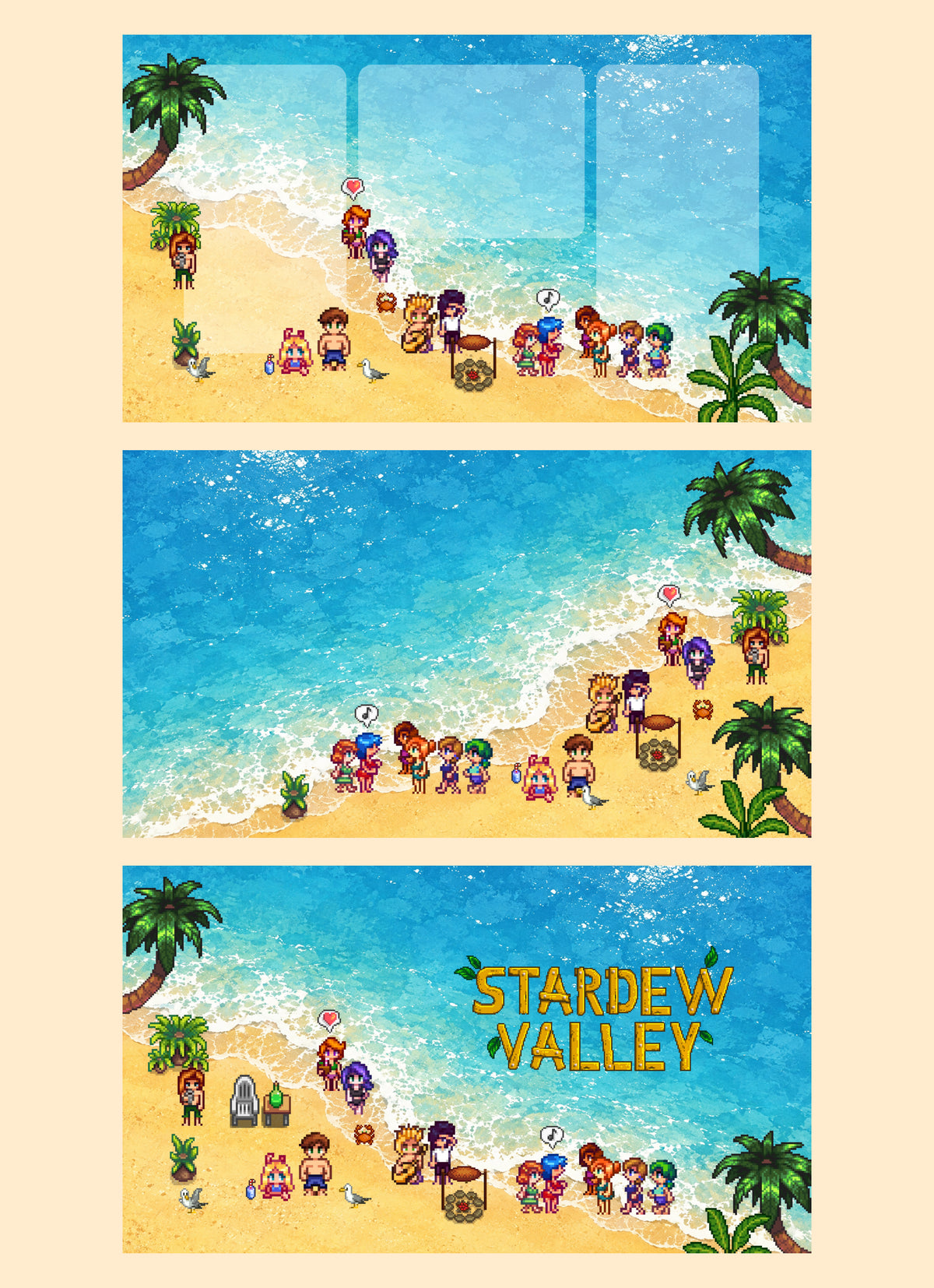
This cozy Stardew Valley-inspired Spring Desktop Wallpaper Set is designed to make your computer feel cute, organized, and a little more peaceful every day.
You will receive 3 high-quality PNG wallpapers:
🌼 1 Organized Desktop Wallpaper
Designed with dedicated sections to help keep your desktop icons neat and organized.
🌿 1 Clean Desktop Wallpaper
A simple version without sections, perfect if you prefer a clean and minimal desktop.
🌸 1 Lock Screen Wallpaper
A matching lock screen design to complete your cozy spring setup.
Perfect for Stardew Valley lovers, cozy gamers, and anyone who wants to bring a soft spring farm vibe to their PC.
WHAT'S INCLUDED
- 1 × Organized Desktop Wallpaper
- 1 × Clean Desktop Wallpaper
- 1 × Lock Screen Wallpaper
- 3 × PNG files
- Digital download only
✨ Instant download
Share

Frequently asked questions
How do I get my files after purchase?
After you complete your checkout, you’ll see a download link on the order confirmation page.
You’ll also receive a confirmation email with the same download link.Click the link to instantly download your files to your device. It will be a zip file(since it contains multiple files),please unzip it~
Didn’t get the email?
Check spam/junk folders. Still missing? Contact us — we’ll resend or provide a Google Drive link.
Why is it a ZIP file? How do I unzip it?
It needs to be a zip file to include multiple PDFs, PNGs, or fonts).
Here’s how to open it 👇
- Mac: Double-click to unzip automatically.
- Windows: Right-click → “Extract All” or open with WinRAR / 7-Zip.
- iPad / iPhone: 1. Open the Files app, then find the ZIP file or archive you want to uncompress.2. Tap the ZIP file or archive. A folder will be created containing the files(and u can see the files inside now~)
- Android: Use Files by Google or any unzip app (like ZArchiver).
How to import the planner into my device?
Take Goodnotes as example,There are several ways to import:
- 、Open GoodNotes → tap “+” → Import → choose your downloaded file (from Files / iCloud / Dropbox).
- Or open your file in Files / Mail / Safari → tap “Share” → Open in GoodNotes / Copy to GoodNotes.
- You can also upload to your Drive or Dropbox, then open from there inside GoodNotes.
You can find a more detailed tutorial in our blog posts↓
More questions?
Our Blog has more how-to guides (and we’re still adding new ones!) — go take a look 💕
Blog posts
View all-
Stardew Valley Digital Planner Setup for GoodNotes
Set up a Stardew Valley digital planner in GoodNotes: import steps, fixing hyperlinked tabs, adding farm stickers, and seasonal planning ideas.
Stardew Valley Digital Planner Setup for GoodNotes
Set up a Stardew Valley digital planner in GoodNotes: import steps, fixing hyperlinked tabs, adding farm stickers, and seasonal planning ideas.
-
How to Choose a 2027 Digital Planner (Buying Gu...
How to choose a 2027 digital planner: dated vs undated, what to check before buying, planner styles compared, and why October beats January.
How to Choose a 2027 Digital Planner (Buying Gu...
How to choose a 2027 digital planner: dated vs undated, what to check before buying, planner styles compared, and why October beats January.
-
How to Use a Digital Planner: Beginner's Guide ...
Learn how to use a digital planner on iPad or tablet, from importing the PDF to daily planning with hyperlinks, stickers, and app tips.
How to Use a Digital Planner: Beginner's Guide ...
Learn how to use a digital planner on iPad or tablet, from importing the PDF to daily planning with hyperlinks, stickers, and app tips.